Most people find out whether they have a backup on the day they need one. The laptop will not start, coffee goes over the keyboard, or someone clears the browser to speed it up. Then the backup turns out to be a USB stick last updated eighteen months ago, or a cloud folder that faithfully copied the problem.
Learning how to back up your records takes one afternoon to set up and about ten minutes a week after that. The routine below works for a small business or a household, and it works whatever you keep records in: software, spreadsheets, scanned documents or all three.
What counts as a backup, and what does not
A backup is a separate copy you can restore from, kept where a single accident cannot reach both it and the original.
These feel like backups but are not:
- A second copy on the same computer. If the computer dies, both go with it.
- A sync folder on its own. It copies mistakes as faithfully as it copies work. Delete a file by accident and the sync deletes it everywhere.
- One copy you made last year. A backup is only as good as its date.
- Paper with no date on it. You cannot tell whether it is current.
Decide what to back up
Start with a list, because the records that matter most are often scattered.
For a business: customers and what they owe, invoices and payments, expenses and receipt photos, stock records, quotes and contracts, and anything your accountant asks for at year end. How long you must keep business and tax records depends on where you live, so check with your accountant or tax authority.
For a household: each person’s allergies, medications and doctors, insurance policies and claims numbers, emergency contacts, and a note of where the original documents are kept.
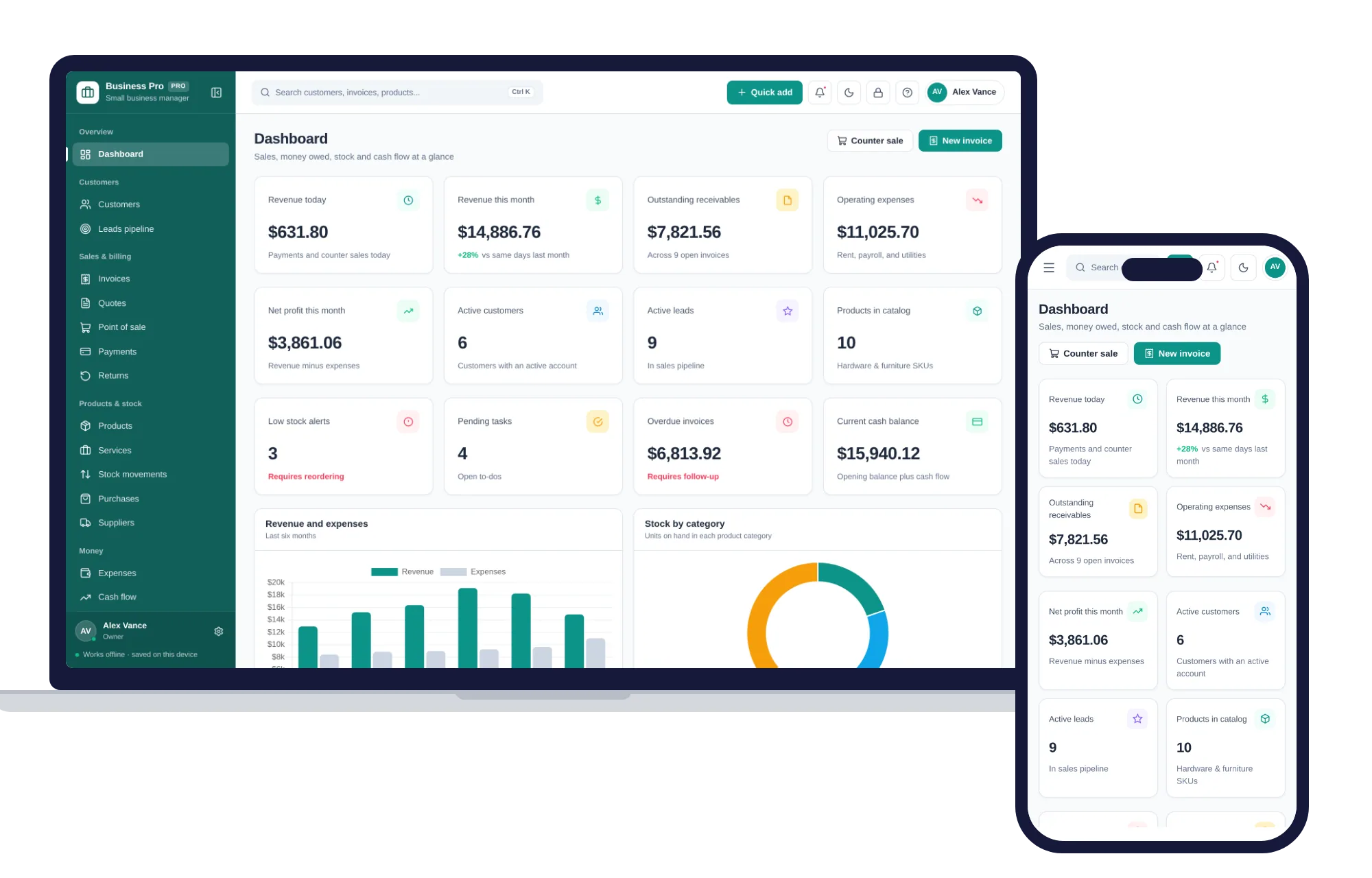
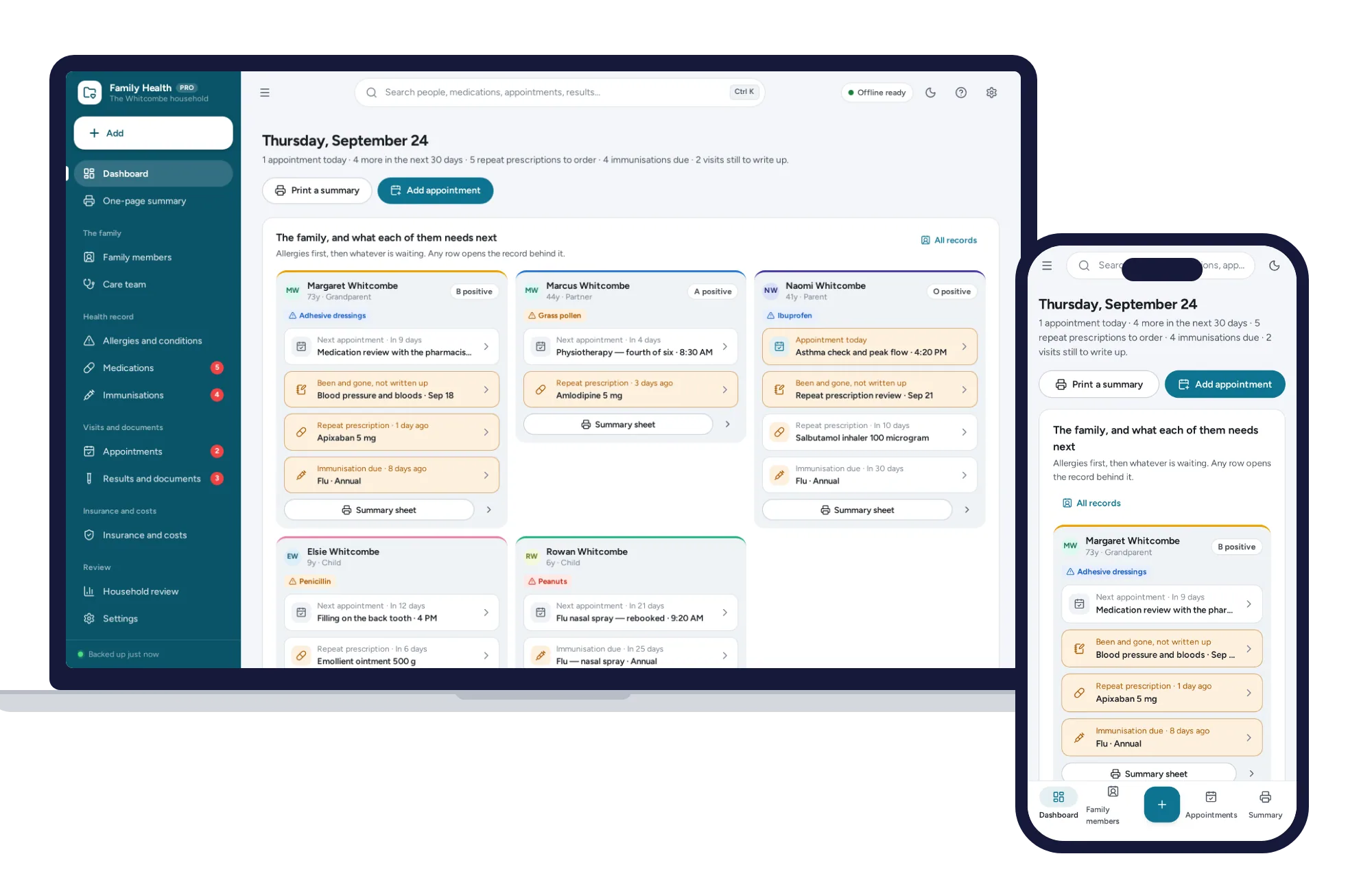
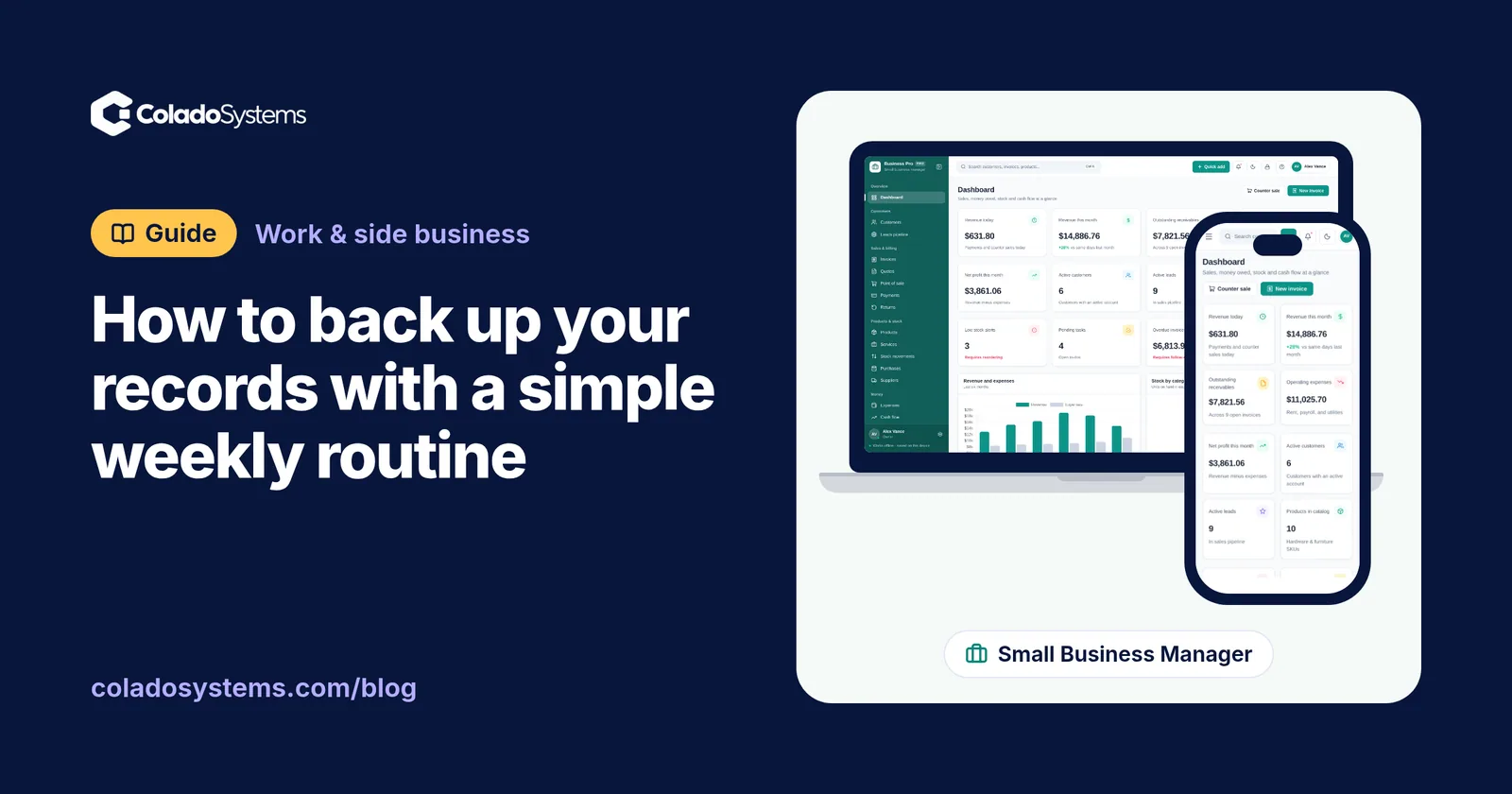
Keeping records in one place makes this much easier. A small business management system with a one-click backup puts customers, invoices, stock and expenses in a single app, so one backup file covers the lot instead of five folders. The same goes at home: a family medical records organizer with a one-page summary per person gathers what is usually spread across letters, pharmacy bags and memory.
How many copies of your records should you keep?
A widely used rule of thumb is 3-2-1: three copies, on two different kinds of storage, with one kept away from home.
In practice:
- Copy one is your working records on the computer or tablet you use every day.
- Copy two is a USB drive or external disk kept at home or in the office.
- Copy three lives somewhere else: a second drive in a desk at work or at a relative’s house, or a cloud storage folder.
A simple way to handle the away copy is two drives labeled A and B. Drive A stays at home and gets the weekly backup. Drive B lives elsewhere. Once a month, swap them. Your away copy is never more than a month old, and you never have to remember where the latest one is.
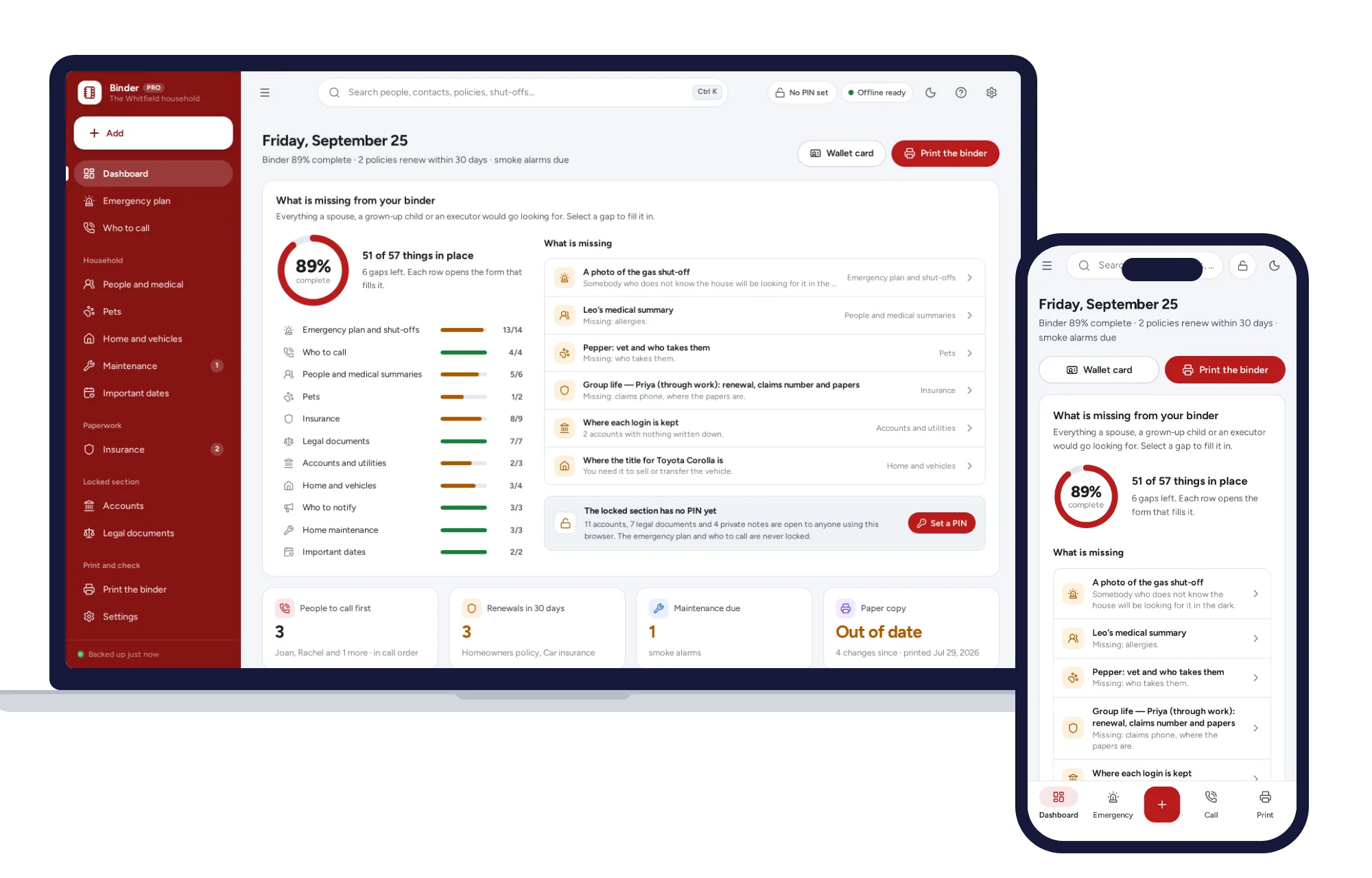
For household essentials, a printed copy counts as one of your three, and it is the only one that works with the power out. An emergency binder that prints in one click makes keeping that paper copy current far less of a chore.
How to back up your records every week
Ten minutes, the same time each week.
- Pick a fixed time. Friday afternoon for a business, Sunday evening for a household. Make it a repeating appointment in your calendar.
- Make the backup file. Save or export it with the date in the name, written year first, like shop-2026-10-09. Files named that way sort themselves in order.
- Copy it to the home drive. Check the file is there and is not empty.
- Keep older versions. Hold on to the last four weekly files and one per month for the past year. If a mistake crept in three weeks ago, you can go back to before it.
- Refresh the away copy. Weekly if you use a cloud folder, monthly if you swap drives.
- Add an extra backup after big days. Month-end invoicing, a full stock count, or a hospital visit that changed someone’s medications.
That is all. The routine is boring on purpose. Re-entering a month of invoices from bank statements, or trying to remember the name of your child’s allergy medicine at an emergency room desk, is the work it saves.
Test a restore before you need it
A backup you have never restored is a hope, not a plan. Every three months:
- Take your latest backup to a second device, such as an old laptop, a tablet or a family member’s computer.
- Restore it.
- Check three things you already know: how many customers or family members there are, your most recent entry, and last month’s total.
- Write the date of the test on the drive’s label.
If something fails, you have found out while the original is still safe. The usual culprits are an empty file, the wrong file, or a second device with nothing installed that can open the backup.
Keep the backups as safe as the records
A backup holds everything the original does: customer addresses, medical details, account numbers. Treat backup files and printed sheets with the same care you would a passport. Keep drives in a drawer that locks rather than loose in a bag. Never type passwords into your records; write down where a login is kept instead. Date every printout, and shred the old one when you print a new one.
How the store’s apps back up to one file
The systems in this store keep your records in the browser on your own device. Nothing is uploaded and there is no account, which also means no company holds a spare copy, and clearing your browsing data erases the records. The routine above is how you cover that, and each system makes it short, because the whole backup is a single file.
In the Family Medical Records Organizer, go to Settings, then Data & backup, then Back up now. To move records to another device, or to test a restore, open the system there and use Restore with that file. For the paper copy, the one-page summary always prints allergies first, and Results & documents prints an index of where each paper original is kept.
The Emergency & Home Binder backs up the same way, with two details worth knowing. The backup contains every record, including the PIN-locked section, so store it carefully. The PIN itself is not in the backup, so after a restore on another computer the locked section stays open there until you set a PIN. The binder prints in one click with the print date on the cover, and its completeness check flags a paper copy that has gone out of date.
The Small Business Management System keeps its backup under Settings & backup. Once a quarter, also export your main reports to CSV or Excel from the Reports page. Those files open in any spreadsheet, whatever you use in future.
One more tip: keep a copy of the unzipped app folder on your backup drive. The systems run from any folder, including a USB drive, so if the laptop dies you can open the app on another computer and restore your latest file the same afternoon.
Keeping it all in one place
Each system opens with sample data, so you can practice a backup and a test restore before you type anything real. There is no account or sign-up, it works offline, and a PDF guide is included. What it does not do is copy itself to the cloud for you: that part is your ten minutes on a Friday.
For more on what belongs in that household paper copy, see what to put in a household emergency binder, section by section. If you are weighing who should hold your records at all, read when software you buy once beats a monthly subscription, and browse other systems for work and side businesses.
For a business, you can see everything inside the Small Business Management System and try it, backup and all, with the sample data the same day.
Skip the setup
The Small Business Manager has the records this guide describes already set up. Customers, leads, invoices, point of sale, stock, expenses and profit & loss in one offline app.
$29.99 one-time
- Sample data to try it the same day
- Works offline, records stay on your device
- A PDF guide in the download
See everything inside the Small Business Manager. Or take the whole Shops, food & stock shelf: 7 systems for $114.99, $94 less than one by one.
Common questions
How often should I back up my business records?
Weekly suits most small businesses and households, plus an extra backup after any unusually busy day, such as month-end invoicing or a full stock count. If you enter dozens of sales or jobs every day, back up daily. A good test is how much work you could stand to re-enter from memory if the computer failed this afternoon.
What is the 3-2-1 backup rule?
It is a rule of thumb for keeping records safe: three copies of your data, on at least two different kinds of storage, with one copy kept away from home or the office. For a small business that might be the computer itself, a USB drive in a desk drawer and a second drive kept at a relative's house. It covers a failed device, a fire or a theft.
Is cloud storage the same as a backup?
Not always. A folder that syncs to the cloud copies every change straight away, including a deletion or an overwritten file, so one mistake can reach every copy within seconds. It works as a backup when it keeps older versions you can go back to, or when you save dated backup files into it instead of relying on the sync alone.
How do I know if my backup actually works?
Restore it. Every few months, take your latest backup file to a second device, load it and check a few things you already know, such as the number of customers or family members, your most recent entry and last month's totals. If anything is missing, fix the routine now, while the original records are still safe.